


If you’re wondering how to schedule tweets on X, just read below 👇
Keeping up with social media can be overwhelming—especially when inspiration strikes at random times or you’re juggling a busy schedule. Luckily, X (formerly Twitter) lets you schedule tweets so you can stay active without being online 24/7.
Whether you’re planning ahead for a product launch, creating content for the week, or just trying to maintain a steady presence, scheduling tweets is a simple yet powerful way to stay consistent. In this post, we’ll show you exactly how to do it, step by step.
Let’s get started!
1. Open X and start a new post
Go to X and log in to your account.
Click on the “Post” button to start writing your tweet.
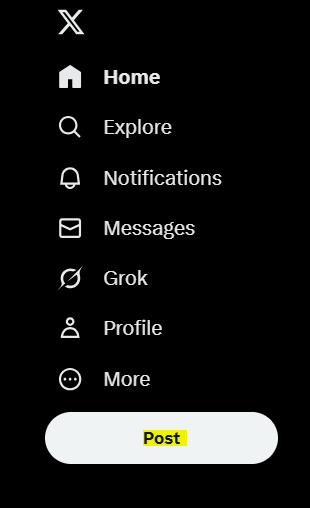
2. Write your tweet and schedule:
Type your message, add images, videos, or GIFs if needed, and make sure everything looks good.
You can also include hashtags and mentions to boost engagement.
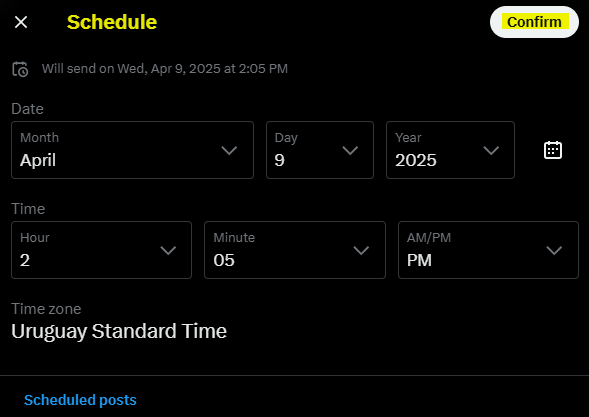
Then click on the calendar icon down below to schedule it.


Thank you for reading! It’s great to have you here at Owlead, and we hope this was precisely the information you were looking for. Stay tuned for more tips and guides to help you grow on X.